How to use JustAudit
One engagement, start to finish: the download, the Windows security prompt, activation, creating a client file, working through SA 320 materiality and CARO 2020, and generating the final ICAI audit report.
Contents
What this program is, and is not
Think of JustAudit as a filing cabinet with the audit already printed inside it. One Windows program, one encrypted file per client: the checklists, the working papers, the trial balance and the drawn statements, the materiality workings, the misstatement schedule, the engagement and representation letters, and the audit report itself, all in the one file, all on your own disk. There is no server behind it and no account to log into. Close the laptop and the whole engagement travels with you.
What you need
- Windows 10 or 11, 64-bit. That is where audit work is done. For a Mac, an iPad or anything else with a browser there is the browser edition of the same program, which opens and saves the same files.
- About 200 MB of free disk space. The program itself is one file of roughly 65 MB; the rest is working room.
- An internet connection, once, to activate. After that the program never needs one. If even that first connection is a problem, see activating with no internet.
- Your product key, in the form
JAJC-XXXXX-XXXXX-XXXXX.
What it deliberately does not do
Three things it will never do, so nobody discovers them halfway through a busy season:
- It does not upload anything. Client names, trial balances and working papers stay on your computer. Not "encrypted in transit", simply never sent.
- It is not an accounting package. The trial balance comes in from the client's Excel or Tally export on the FINANCIALS tab, and everything after that, grouping and statements included, is the program's job. It does not, however, keep books.
- It does not file returns. It prepares the working papers, the Form 3CD content and the report; you file them wherever you file them today.
Get your product key
Fill in the short form on the Get a key page. A six-digit code arrives by email; type it in and the key is on your screen immediately, and in your inbox as well. Nothing to wait for, nobody to call.
- Use a working email address. The code goes there, the key goes there, and it is how you sign in later to see the key again. If nothing has arrived after a minute, look in the spam folder, that is where it usually is.
- The password you choose is for My licence on this website. It is not the product key, and it is never typed into the program.
- One key per person. If the form tells you your email or mobile number is already on file, you already have a key, sign in instead of registering again.
Download the program
There is no installer, no setup wizard and no next-next-finish. One file lands in your Downloads folder, and that file is JustAudit, which is why the next instruction matters more than it looks.
- Open the Download page and press the download button.
- When the browser finishes, move the file out of your Downloads
folder, into
Documents, or a folder of its own. This file is the program. There is no installer and nothing is copied anywhere else, so clearing out Downloads deletes JustAudit. - Right-click it and choose Pin to Start, or Show more options ▸ Send to ▸ Desktop (create shortcut), so you can find it tomorrow.
Your browser may say the file "isn't commonly downloaded" or "can't be downloaded securely" and offer to throw it away. Choose Keep, in Chrome and Edge that hides behind the ⋯ menu beside the download, then Keep anyway. It is the first of the warnings dealt with next.
Windows does not know us yet
This is the step that generates most of our phone calls, so it is worth a minute of explanation. Windows keeps a running count of how often it has seen a program before; a new one from a small publisher scores badly, and JustAudit is not signed with a commercial code-signing certificate, which is the paid-for reputation that would fix it. So Windows says what it always says about a program it does not recognise, in one of four different wordings, each with its own button in its own place.
None of them means there is anything wrong with the file. They mean Windows has not met the publisher. Find the wording that is on your screen right now and follow that part.
"Windows protected your PC", SmartScreen
A blue box appears when you open the file, and the only button you can see says Don't run.
- Click More info, a small link inside the blue box, and very easy to miss.
- The publisher line and a Run anyway button appear. Press it.
You will not be asked again for that copy of the file. Download it a second time and you get the prompt once more.
The file vanishes, or "Threat found", Microsoft Defender
Defender occasionally quarantines an unrecognised program on sight. The download disappears and a notification says a threat was found. To get it back:
- Open Windows Security, press the Windows key and type Windows Security.
- Go to Virus & threat protection ▸ Protection history.
- Find the entry naming JustAudit, expand it, and choose Actions ▸ Allow on device (or Restore).
If it keeps happening, tell Defender to leave the folder alone: Virus & threat protection ▸ Manage settings ▸ Add or remove exclusions ▸ Add an exclusion ▸ Folder, and pick the folder you saved JustAudit in.
"This app has been blocked", with no way past, Smart App Control
Smart App Control is a Windows 11 feature that turns up on some newly installed machines. Unlike SmartScreen it offers no "run anyway": it refuses every program not signed by a recognised publisher, and that is the end of the conversation.
- Open Windows Security ▸ App & browser control.
- Click Smart App Control settings.
- Set it to Off and confirm.
- Open JustAudit again. You may still get the ordinary SmartScreen prompt above that one does have a Run anyway.
"Unauthorised changes blocked" when you save a file
That is Controlled folder access, which stops programs writing into
Documents or Desktop. Either save your .pna files somewhere else, or
allow JustAudit through: Windows Security ▸
Virus & threat protection ▸
Manage ransomware protection ▸
Allow an app through Controlled folder access ▸
Add an allowed app.
Your firm's own antivirus
Quick Heal, K7, Norton, McAfee and the rest all do the same thing in their own wording. The fix is always the same shape, whatever the brand: find the quarantine or history list, restore the file, then add the folder to the exclusions. If an IT provider manages your machines, send them this page and they will recognise every step on it.
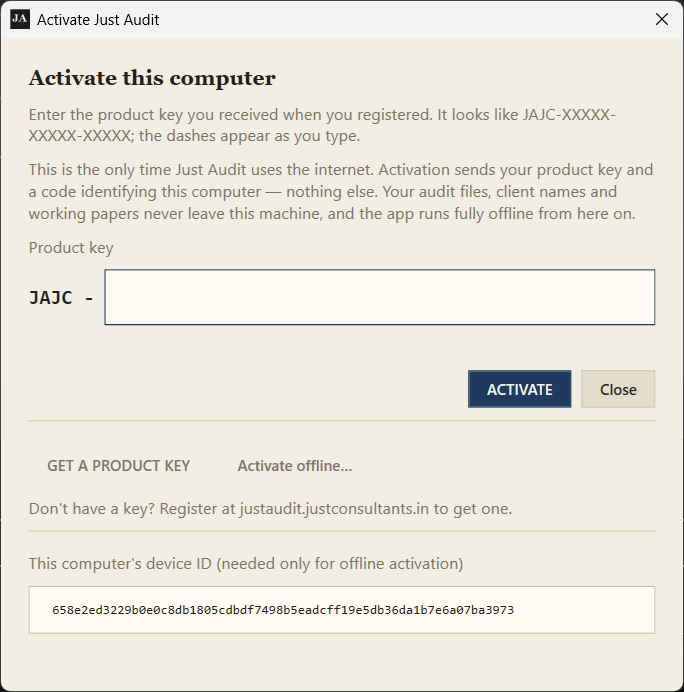
Activate this computer
Past the warnings, and the program opens on the only screen it will ever ask you to fill in twice, once per computer, and never again on that one.
- Type or paste the key exactly as issued
JAJC-XXXXX-XXXXX-XXXXX. Upper and lower case both work and the dashes are optional. - Click ACTIVATE.
- The window closes and JustAudit opens. That is the only moment the program uses the internet. It sends your key and a code identifying the computer, and gets back a licence file it stores beside itself.
From then on it starts straight into your work, online or not. It does check in quietly whenever it happens to have a connection, which is how a renewal reaches you without anyone re-typing anything, but a check that fails never stops you working.
No internet on that machine at all? Use Activate offline… and follow the offline steps.
Create a client file
JustAudit opens on the client register, every client file you have opened on this computer, most recent first. On day one it is an empty shelf, and there is exactly one thing to press.
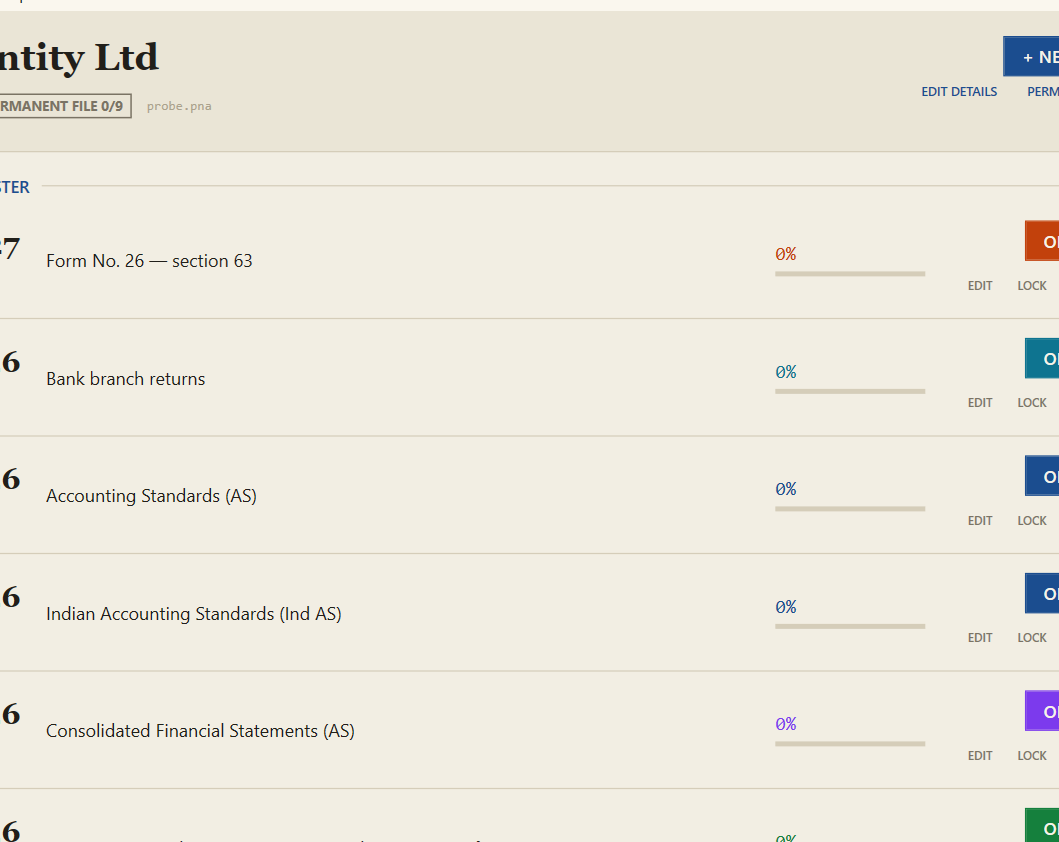
Click + NEW CLIENT FILE and fill in the company's details. Only the name is required; the CIN and registered office are printed on the working papers if you enter them.
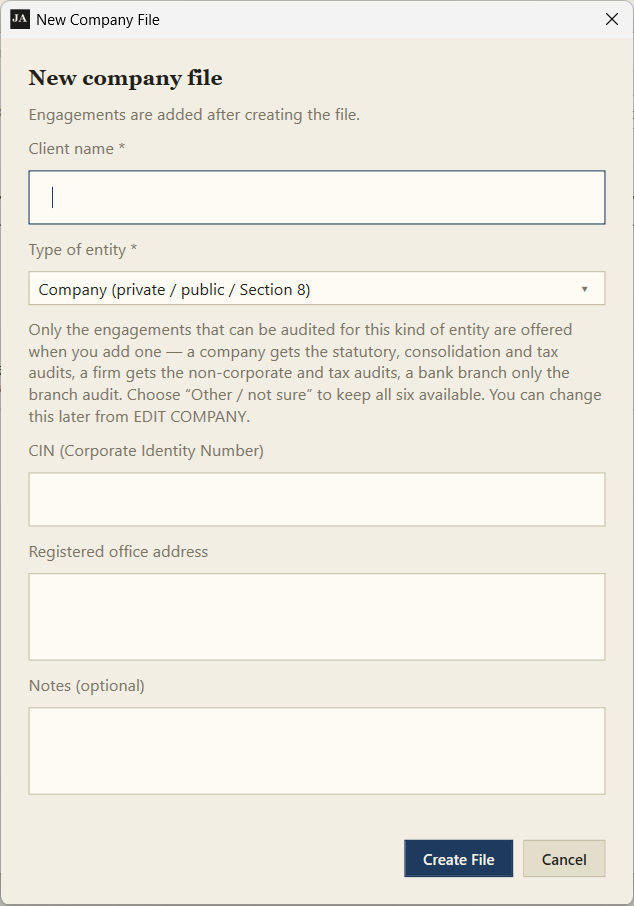
Windows then asks where to save it. Save it inside your OneDrive or Google Drive folder, backups explains why this one decision matters more than any other you will make here.
You now have a client window. One file holds one company and all of its years.
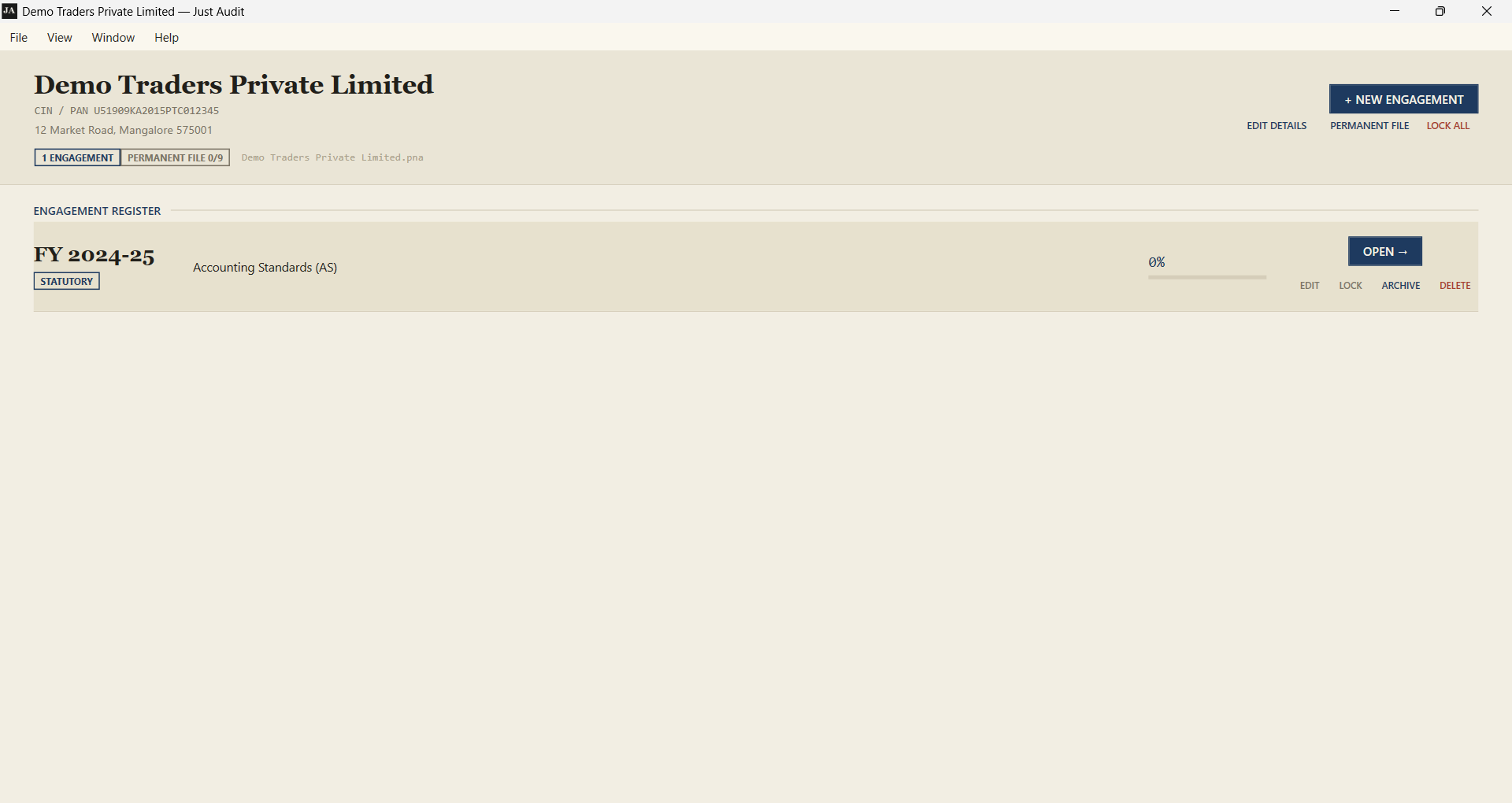
Add an engagement
An engagement is one year of one audit. Click + NEW ENGAGEMENT and answer four questions, between them they decide which tabs you get, which statutory lists you get, and how the report will read at the end.
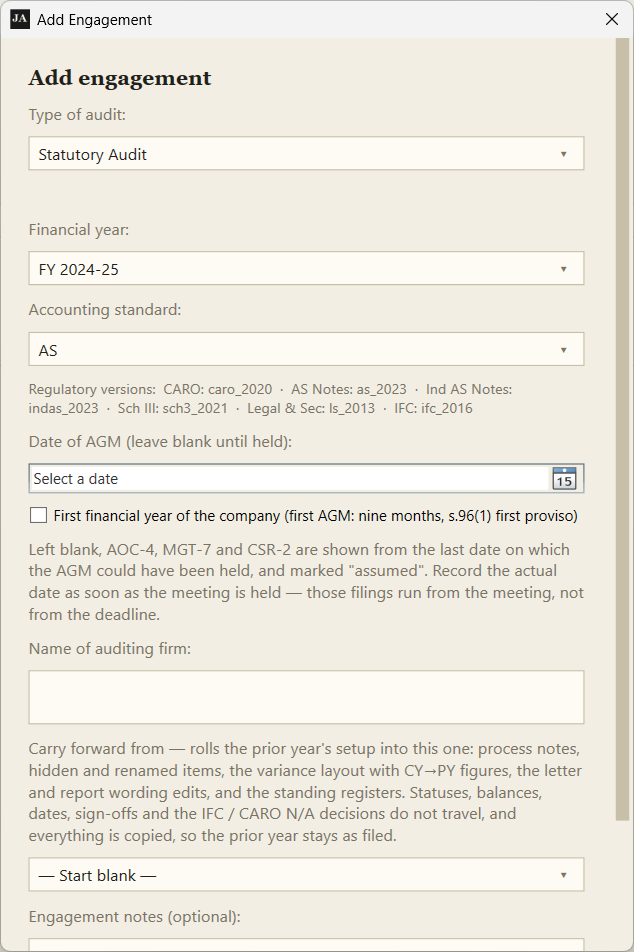
- Type of audit. The list offered is the one the client's entity
type allows, and each type brings its own working papers and report:
Type What it carries Statutory Audit The full Companies Act audit, SA 700 report, notes to accounts, Schedule III, IFC, CARO, Legal & Secretarial. Consolidation The group SA 700 and consolidation documents, alongside the standalone audits it consolidates. Tax Audit The clause-by-clause tax audit report, Form 3CD up to FY 2025-26 and Form No. 26 with its schedules from FY 2026-27. No materiality tab: the form is a factual return, not a set of financial statements. Statutory Audit Non-Corporate The SA 700 audit with the Companies Act machinery removed, for firms, LLPs, proprietorships, HUFs and societies. Bank Branch Audit The branch auditor's report, LFAR, advances & IRAC, Memorandum of Changes, certificates, Ghosh & Jilani. Trust Audit Form 10B / 10BB with its annexure and the registration & compliance checklist. - Financial year. This decides which version of each statutory list you get. The versions in force for that year are listed under the dropdown.
- Accounting standard. AS or Ind AS. It changes the notes to accounts and the disclosure checklists.
- Name of the auditing firm. Printed on the report and the letters.
If an earlier year of the same audit exists in the file, the dialog also offers to carry forward the prior year's setup: process notes, the variance layout, letter wording and the standing registers come across. Statuses, sign-offs and every judgement deliberately do not.
Click OPEN → on the engagement row to start work.
Work through the tabs
Here is the whole program, really: a row of tabs across the top, arranged in the order an audit is actually done, planning on the left, fieldwork in the middle, completion on the right. Nobody makes you go left to right, and nothing on any tab is compulsory. Work the way you work; the file keeps up. A tab appears only where it applies to the engagement's type, so a tax audit is never asked materiality questions and a bank branch is never shown CARO.
The tabs
| Tab | What lives there |
|---|---|
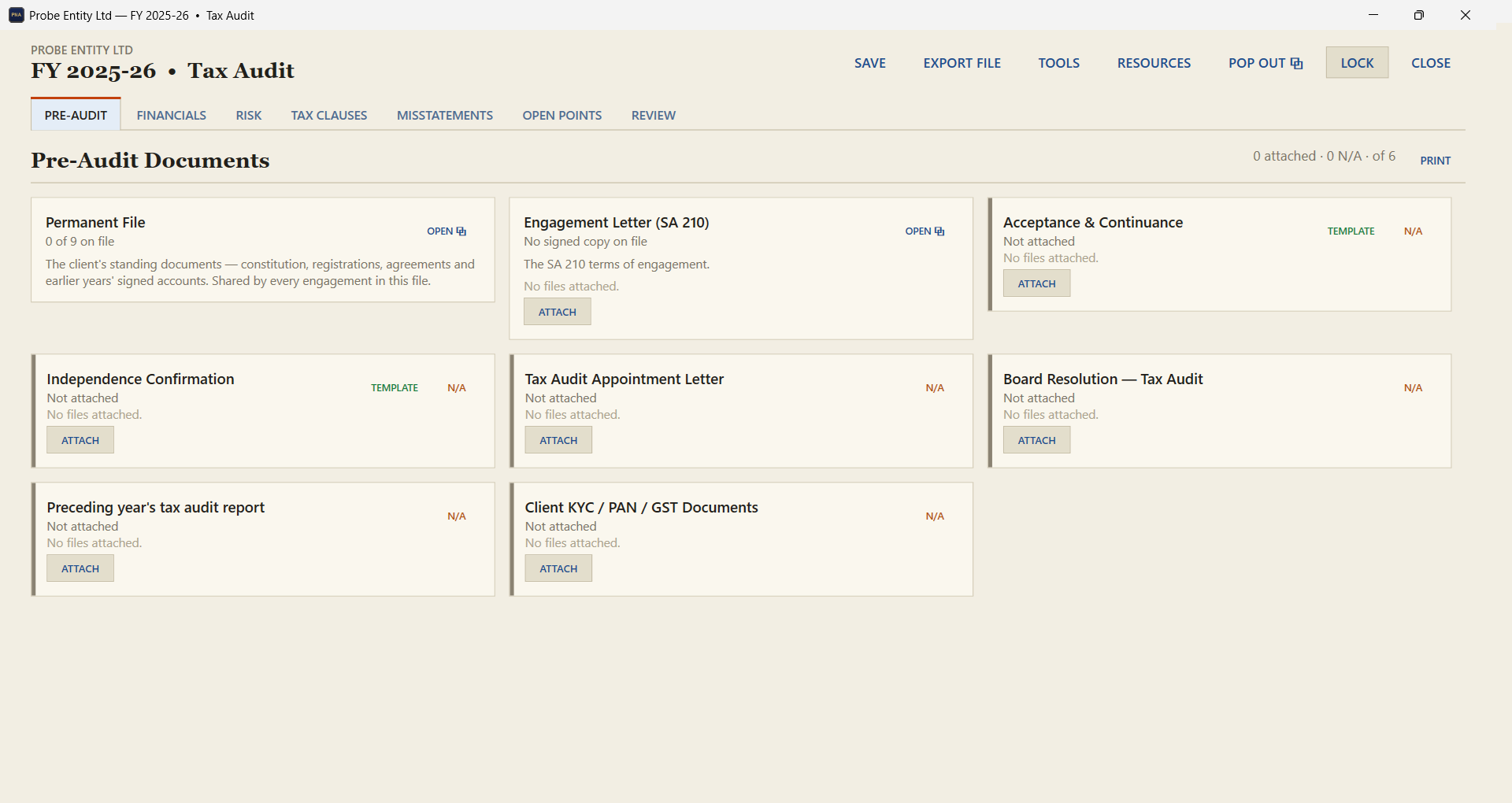
| PRE-AUDIT | The permanent file, documents shared by every engagement of this client, then a template to print and a place to file the signed copy for each pre-audit document: appointment, consent, independence, the engagement letter, the planning memos. |
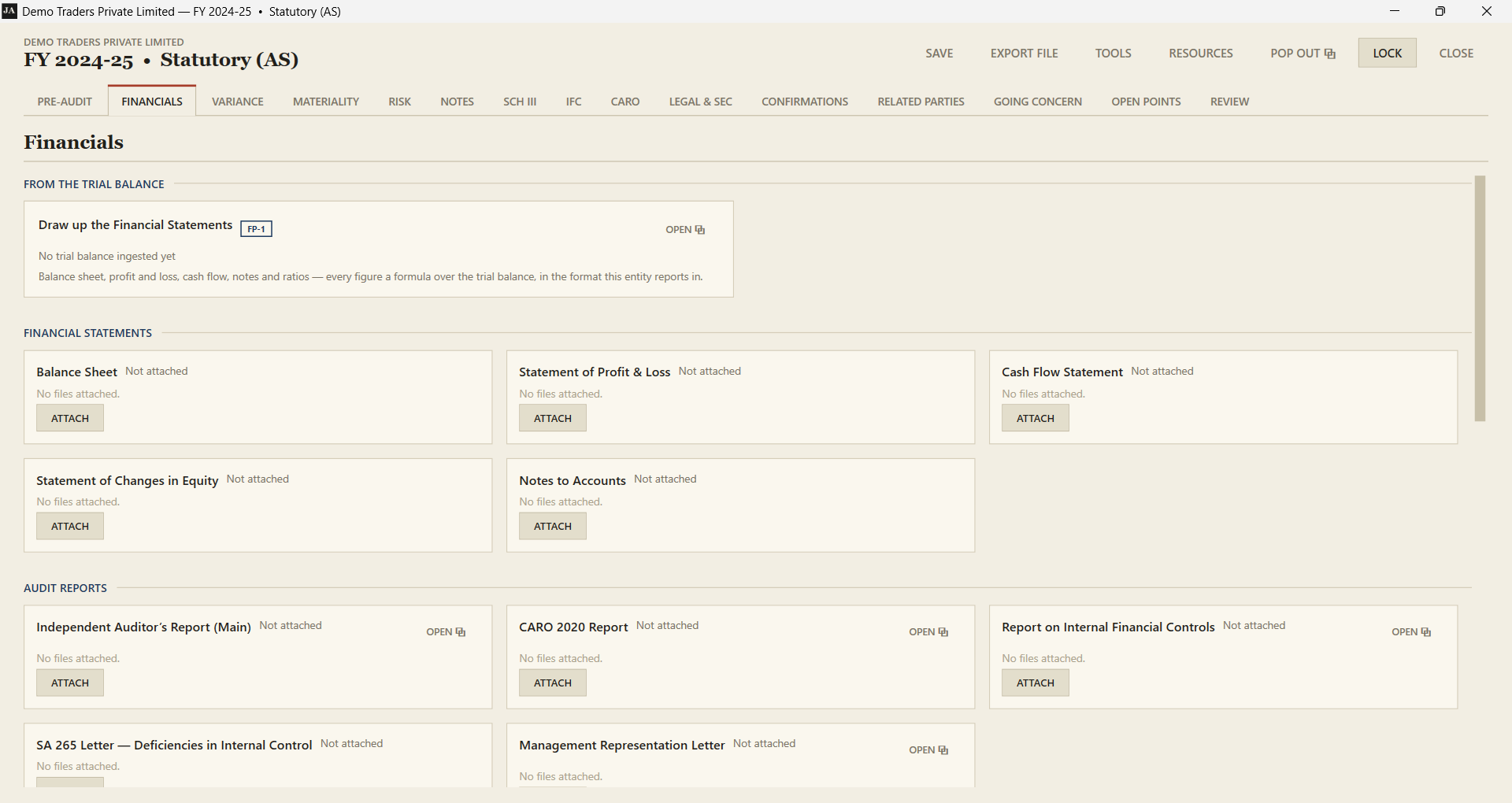
| FINANCIALS | The statements module, trial balance in, drawn statements out, in three steps described below, and the cards where each issued document is filed with its signed copy. |
| STATUTORY DUES (appears after the challan tool runs) | The register the challan reader builds — every payment across every head, with the answers it feeds the tax audit and CARO, and the challan PDFs filed as evidence. The tab only appears once the tool has read something for the engagement. |
| NOTES (statutory) | Notes to accounts, one working paper each: the procedure, your observations, attachments and a status. |
| TAX CLAUSES (tax audit) | Every clause of the notified form, as amended for the year you chose. Up to FY 2025-26 that is Form 3CD; from FY 2026-27 it is Form No. 26 under section 63 of the Income-tax Act, 2025, which replaces Form 3CA, Form 3CB and Form 3CD together. You do not choose: the year you pick decides, and an engagement created before the change keeps its old form for ever. |
| SCHEDULES (Form No. 26) | The tables the Form asks particular clauses to furnish — 39 clauses, 55 tables — filled in as working tables rather than described. See below. |
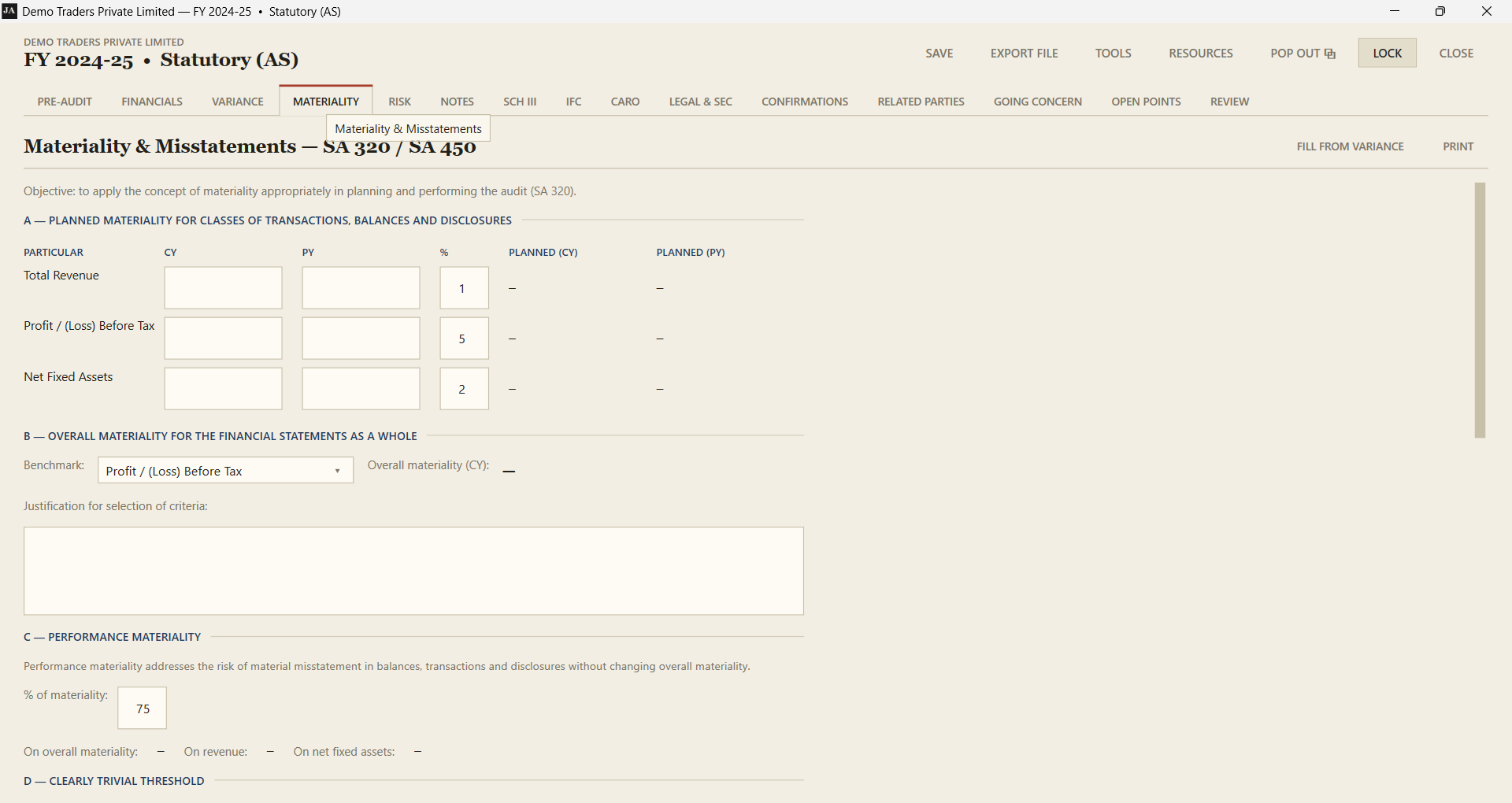
| MATERIALITY | SA 320, benchmark, percentages, overall and performance materiality, and the trivial threshold. Everything else reads these figures, so never recompute them by hand. |
| RISK | The SA 315 risk register: identified risks, the assertion affected, and your response. |
| SCH III | Schedule III presentation and disclosure checklist, including the 2021 additions. |
| IFC | Internal financial controls checklist. Your answers here drive the Annexure B opinion by themselves. |
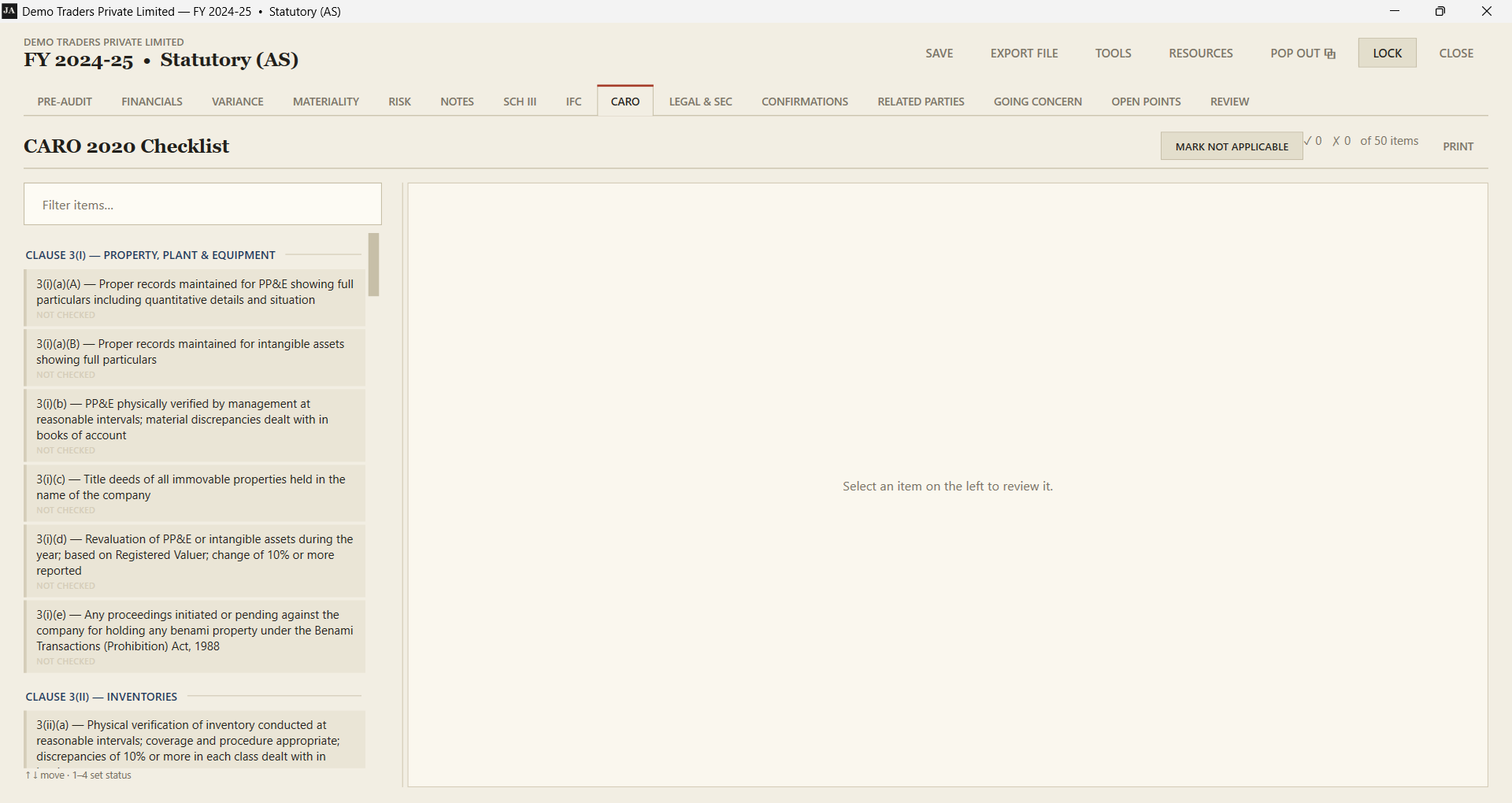
| CARO | All fifty CARO 2020 reporting items, each marked compliant, non-compliant or not applicable. |
| LEGAL & SEC | Companies Act and secretarial compliance checklist. |
| VARIANCE | Year-on-year comparison. Enter the two years' figures and it computes the totals and flags what moved, ready to raise as an open point. Goes out to Excel and comes back, described below. |
| CONFIRMATIONS | SA 505 external confirmations sent, received and reconciled. |
| RELATED PARTIES | SA 550 register of parties, relationships and transactions. |
| MISSTATEMENTS | The SA 450 schedule aggregating uncorrected misstatements against materiality. |
| GOING CONCERN | The SA 570 assessment. Its conclusion feeds the opinion the report window suggests. |
| MGT REP | The SA 580 representation letter. Tick the paragraphs that apply, reword any of them, add your own, print. |
| REPORT | The SA 700 audit report with Annexure A and B, written from the work above. Your inputs on the left, the finished document live on the right. |
| OPEN POINTS | Every query you raised anywhere in the engagement, in one list. |
| REVIEW | Preparer and reviewer sign-offs, and what is still outstanding. |
The other engagement types bring their own tabs the same way: a bank branch gets ADVANCES, LFAR, CERTIFICATES, MOC and GHOSH & JILANI; a trust gets REGISTRATION and the Form 10B/10BB annexure; a non-corporate audit gets DEED & CONSTITUTION in place of the Companies Act tabs; a consolidation gets CONSOL DOCS. The tabs are the same shapes described on this page, filled with that audit's own lists.
The financial statements, from the trial balance
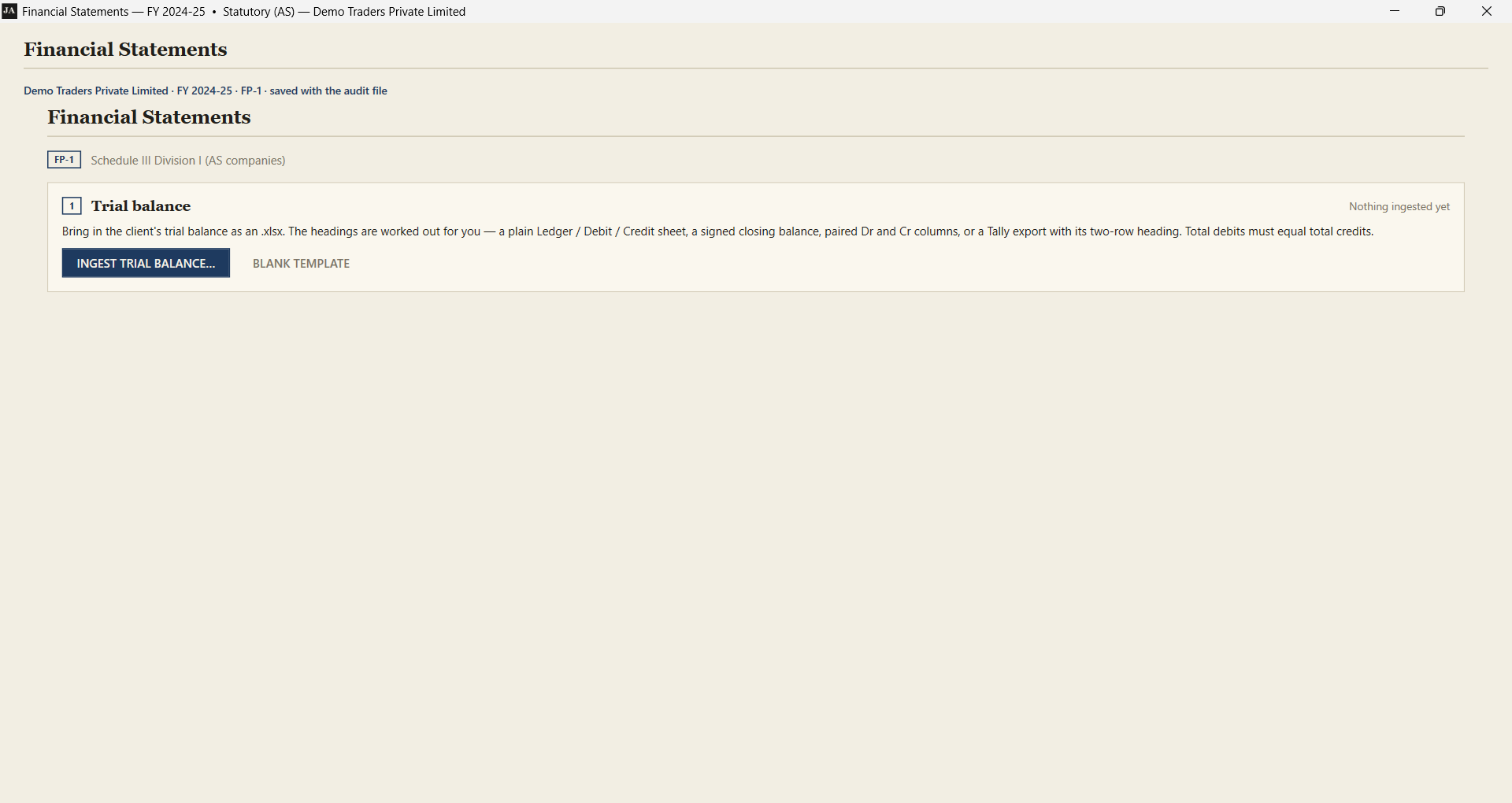
The FINANCIALS tab carries a three-step module that turns the client's trial balance into drawn statements:
- Ingest the trial balance. Point it at the client's workbook. Tally exports, accountant formats and a blank template are all understood, and every ledger arrives with its closing balance.
- Group the ledgers. GROUPING WORKBOOK writes the whole trial balance to Excel with a dropdown of the Schedule III lines against each ledger. Whoever does the mapping picks a line per ledger and the workbook comes back in. A figure typed in Excel is refused on import: the place to adjust a figure is Out of Book Entries, so every statement figure stays traceable to the trial balance.
- Draw the statements. Every figure in the emitted workbook is a formula over the grouped trial balance, so an audit adjustment passed anywhere flows through the notes, the face, the cash flow, the ratios and the checks without a number being retyped. The MS sheet fills itself from the engagement's own particulars.
Where one year carries two engagements over the same statements, the statutory audit beside the tax audit, say, LINK FROM… on FINANCIALS copies the statements and trial balance across, so the two sets can never disagree.
The same three-step engine is also on the TOOLS shelf, where it runs on its own — useful when you want a set of statements without an engagement open. See The tools shelf below.
How a checklist tab works
Learn one of them and you have learned all of them. Every checklist tab is the same shape: the list of items down the left, the one you are working on to the right.
- Click an item to open it, or move with ↑ and ↓.
- Set the status with the buttons, or press 1 4.
- Type what you found in Observations. This is your working paper it prints, and it is what a reviewer reads.
- ATTACH pulls a document inside the engagement file itself, so the original can be moved or deleted without breaking anything.
- The counter at the top right, "✓ 0 ✗ 0 of 50 items", is what feeds the engagement's progress percentage.
- MARK NOT APPLICABLE settles a whole section at once, for a company the clause simply does not reach.
Working papers
The notes tab is the same shape, with the audit procedure already written out for each note. Edit it where your approach differs, and record your observations underneath.
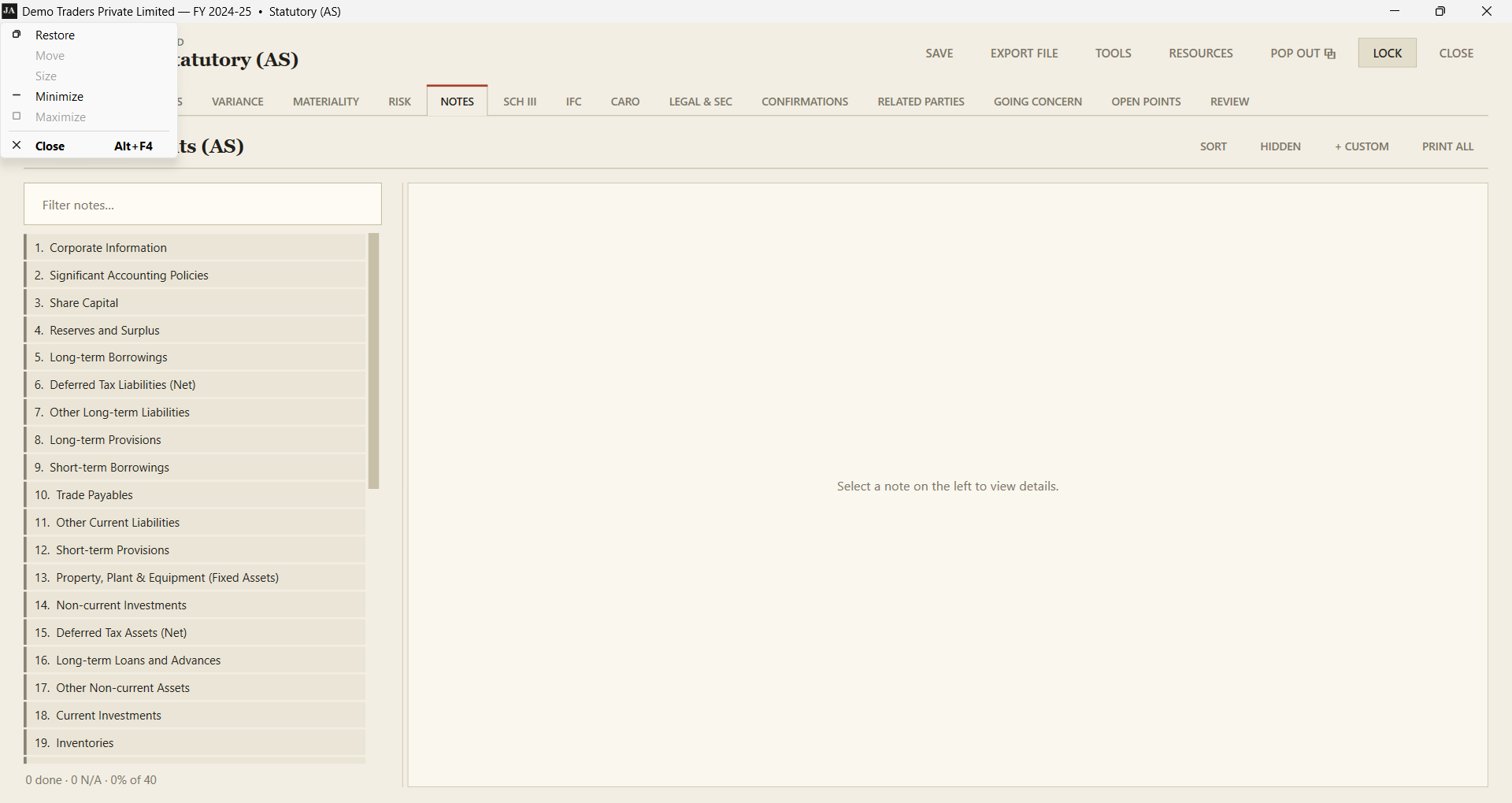
- HIDDEN shows the notes you marked N/A. Nothing is ever really deleted, so marking one N/A by mistake is always reversible.
- + CUSTOM adds a note the standard list does not have.
- SORT reorders them, and the printed numbering follows.
- PREP and REV stamp your initials as preparer and reviewer, with the date.
The variance tab goes to Excel and comes back
EXCEL TEMPLATE writes the whole tab as one sheet, and IMPORT EXCEL… reads it back. Lines may be added, deleted, reordered and retyped in Excel; the import replaces the tab with what the sheet now says, because that is the only rule an auditor can hold in their head while editing a spreadsheet. Totals survive the round trip because every row carries an Id column; leave a total alone and it recomputes itself.
Form No. 26 schedules
Thirty-nine of the fifty-three clauses have to furnish a table of their own — the ICDS adjustments, the depreciation blocks, loans and deposits under section 185, the transactions in unquoted shares, and so on. The SCHEDULES tab lists every one of them with how much of each is filled in; the clause itself carries the same OPEN SCHEDULE button, so you can work either front-to-back down the list or clause by clause as you go.
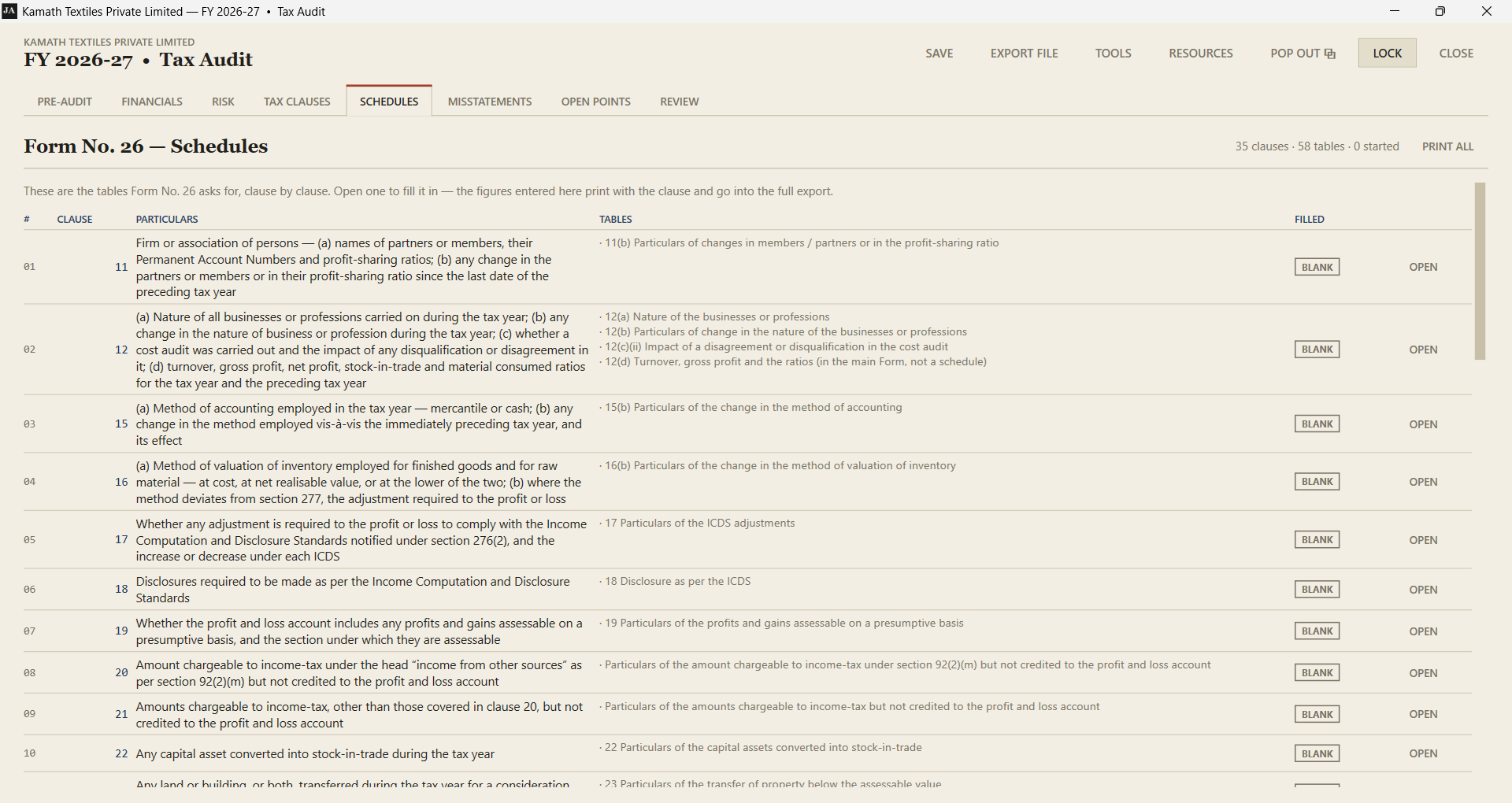
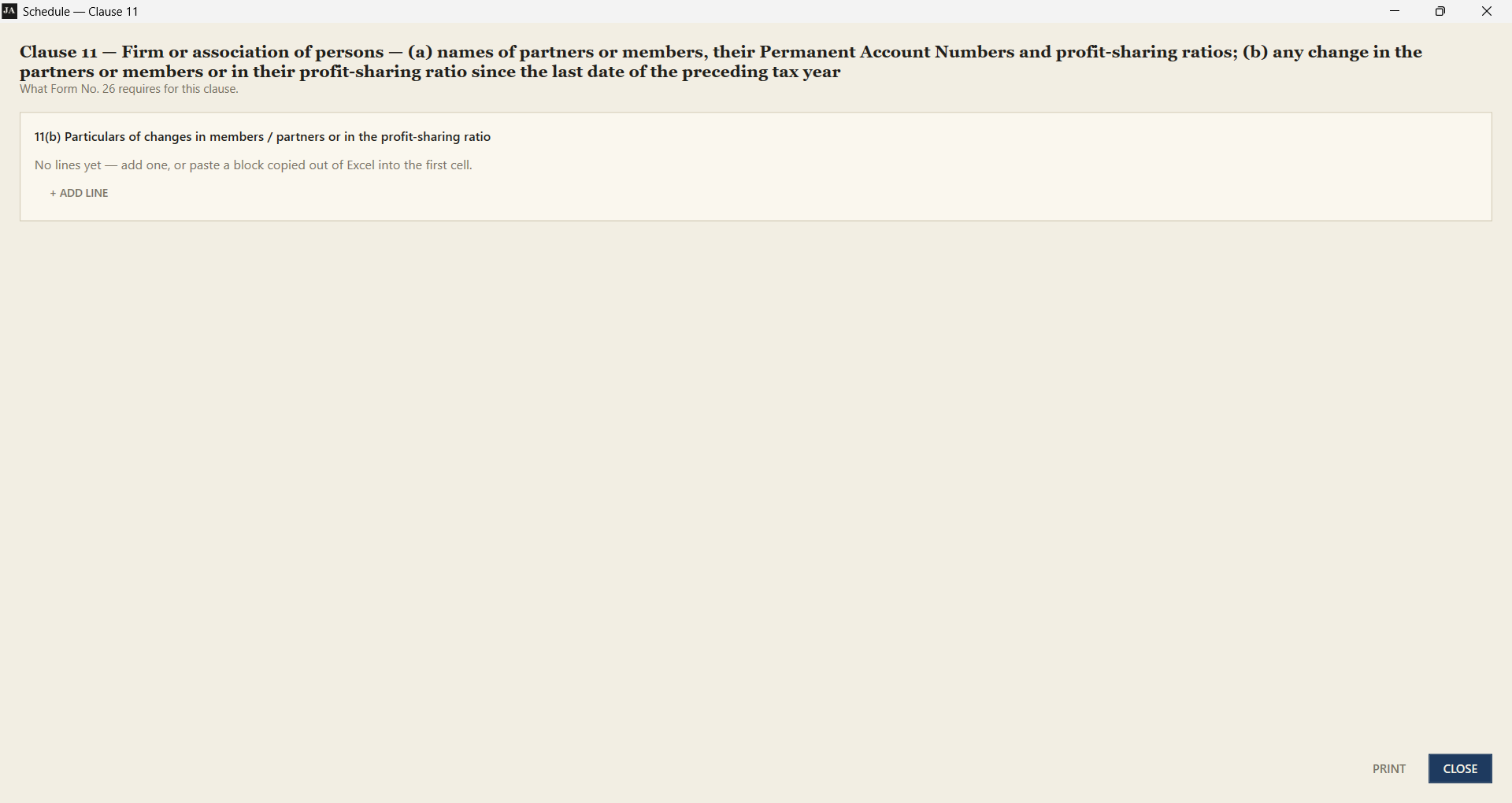
Each one opens in its own window, one working table per notified table:
- + ADD LINE for a table you fill yourself; where the Form prints its own lines — the eleven ICDS, the 12(d) ratios — they are already there and cannot be deleted.
- Paste straight out of Excel. Copy a block of cells, click the cell you want it to start at, Ctrl + V. Rows are created as needed. This is the fastest way to fill the wide ones — clause 47 is thirteen columns across.
- Money columns are right-aligned and totalled for you. Where the Form prints its own total line, that one is used and no second total is added.
- What you enter prints with the clause and goes into the full export, so the working paper and the Form read the same way.
Three tables — 50(b), 50(c) and 52(a) — are shown as a note rather than a grid, because their columns are not legible in the copy of the Form the clause list was written from. Take those from the notified Form.
Materiality
Enter the current and prior year figures and the percentages you have chosen; the overall, performance and trivial figures follow. FILL FROM VARIANCE takes the three benchmarks off the variance tab as computed totals.
The misstatement schedule underneath aggregates uncorrected misstatements and compares the total against those figures, which is the SA 450 conclusion the file needs.
The reports are written, not assembled
The audit report, both annexures, the representation letter and the engagement letter each open in their own window from the card on the tab where they belong: your inputs on the left, the finished document live on the right. The wording is generated from what the file already says — the IFC answers set the Annexure B opinion, the CARO answers become Annexure A, the going-concern checklist decides whether the SA 570 section appears. What the auditor writes is only the judgement: the basis of a modified opinion, the emphasis paragraphs, the key audit matters.
Saving
There is no save button, and there is nothing to remember. The file writes itself about a second after you stop typing and Saved ✓ appears at the top right so a flat battery costs you a sentence, not an afternoon. Ctrl + S forces it immediately if you want to watch it happen before closing the laptop.
A file in the firm library saves the same way, except that saving also fetches whatever your colleagues have done in the meantime. The status line says who else is in the file: “Saved ✓ · PS also here”.
The tools shelf: challans and the financials generator
The TOOLS button sits in the top bar of the engagement, and on the home and client screens, and it is where the program keeps the things that are not an audit tab — seven helpers, most of which turn the client’s own documents into audit evidence.
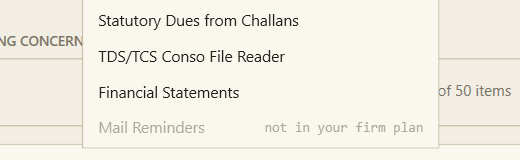
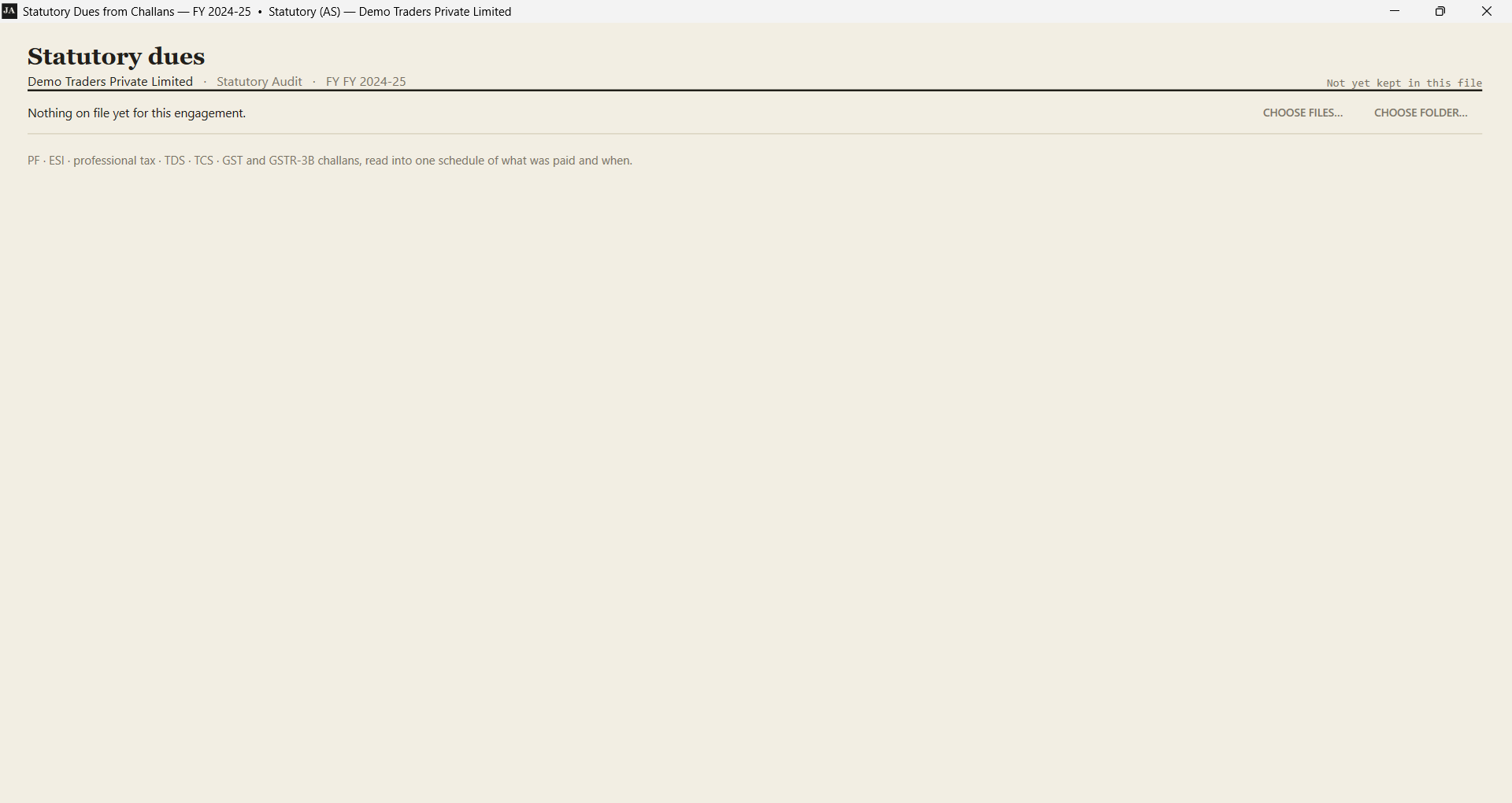
- Statutory Dues from Challans — reads the client’s PF, ESI, professional tax, TDS, TCS, GST and GSTR-3B challans and turns them into one schedule of what was paid and when. It is what fills the answers the tax audit and CARO are obliged to give.
- Financial Statements — the financials generator. Trial balance in, drawn statements out, from the same three-step module that sits on the FINANCIALS tab.
- Ledger Scrutiny — the client’s whole daybook put through 154 scrutiny rules that know what every ledger is. It has a section of its own below.
- TDS/TCS Conso File Reader — reads the TRACES consolidated file, the one the tax portal gives you, and turns every section into a table you can filter and export. It is what answers the two Form 3CD tables the tax audit has to give about TDS/TCS; see below.
- Statistical Sampling — SA 530 sample selection, done honestly: it picks the items, proves the selection resembles the population, and refuses to pretend a draw is representative when it is not. It has a section of its own below.
- PDF Workbench — merge, split, compress, rotate and convert the client’s PDFs without uploading them to a website. It has a section of its own below.
- Mail Reminders — the practice’s own housekeeping, not audit work; it has a section of its own below.
Reading the client’s statutory challans
Inside an engagement, choose the challans (or the folder they are in) and the program reads each one — the printed text first, and where a challan is a scan with no text layer it reads it with Windows’ own built-in reader, so nothing extra has to be installed. Each payment becomes a row: the head (PF, TDS, GST…), the period, the date it was paid and the amount.
Because the engagement already knows who the client is, it checks each challan against that name — a challan that does not look like this client is flagged rather than silently mixed in. The challan PDFs are filed into the engagement at the same time, so the evidence and the figure stand together.
From that register the program answers the four things an audit has to say but nobody wants to recompute by hand each year:
- The late-paid employee contributions — the u/s 36(1)(va) point the tax audit asks about.
- The section 43B sums: liabilities incurred, paid and still unpaid.
- The TDS/TCS particulars the tax form wants.
- The CARO clause 3(vii)(a) answer on undisputed statutory dues regularly deposited.
The TDS/TCS conso file reader
The tax portal does not hand you a table of what you deducted and deposited; it hands you a conso file — the consolidated file TRACES gives you for a quarter, one caret-delimited line per record. Nobody reads those by hand. This reader does: every field of every line, into one table per record type, with the file, the form, the quarter, the TAN and the deductor carried onto each row, so four quarters read as one table.
Because it keeps every field and every position, a field the FVU layout names keeps that name — Total TDS (F16) — and the rest keep the position alone, so the table still reads the way a tax practitioner expects, not the way a database mangles it. The section code is probed by shape rather than read from a fixed index, because the RPU and FVU versions shift the field count around it; the raw fields are stored either way, so nothing is lost on the way in.
EXPORT THIS VIEW writes exactly the rows on screen, filter and sort included; EXPORT ALL writes every record type. The full export ends with the two tables the tax audit has to give: the clause 34(a) table (amount paid and tax deducted, by deductor and section) and the clause 34(c) table (the challans that carried interest).
The financials generator
The same engine that draws the statements on the FINANCIALS tab runs here on its own, which is handy when you want a set of statements before an engagement exists, or for a client whose statements you are drafting outside the audit file.
It starts with the trial balance — paste it, or take Tally’s export, or use the blank template — then groups the ledgers onto the Schedule III lines, then draws the statements. Every figure in the output is a formula over the grouped trial balance, so an adjustment flows through the notes, the face, the cash flow and the checks without a number being retyped.
Scrutinising the whole daybook
SA 240 paragraph 32(a)(i) says the auditor shall test the appropriateness of journal entries recorded in the general ledger. It is mandatory on every audit, and it is almost never done over the whole population, because by hand it cannot be. This does it over the whole population.
The reason it can is the FINANCIALS tab. Once the trial balance is grouped, every ledger in the file carries a Schedule III major head, a note line and a cash-flow tag — you have already told the program which ledger is rent, which is cash and which is a related party. That is the missing half of every generic “audit analytics” tool. It is what turns a ledger called RENT A/C - 2 (NEW) into an Other Expenses line, on the profit and loss, that should only ever be debited, and that attracts s.194-I — without anybody guessing from the name.
Giving it the daybook
TOOLS ▸ Ledger Scrutiny, inside an engagement. Drop the client’s voucher register on the window, or read one already filed against the engagement. Four kinds of export are read as they come:
- Tally Prime / ERP 9 — the Day Book export, title rows and all. Tally indents the second leg of a voucher and repeats neither the date nor the number on it; the blank date is the marker, and both are carried down. Tally keeps who entered a voucher and when in its Audit and Alteration reports rather than in the Day Book, so export one of those as well and use ADD THE AUDIT TRAIL — it is joined on voucher number, and it is what lets the Rule 11(g) tests run at all.
- SAP — an FBL3N / FAGLL03 line-item export or the document journal. SAP carries the entry date and the user natively, so the audit-trail tests run in full with no second file.
- Zoho Books, QuickBooks, Marg, Vyapar — the journal or transaction report each of them writes.
- The program’s own template — PUBLISH A BLANK DAYBOOK writes it, with the column meanings on a second sheet. Send it to the client before the audit starts, or key a small client’s book into it. It is also the answer when the ERP is not one of the other three.
You are never asked for the “other side” of an entry. A daybook is one row per leg, so the contra side is simply the other rows carrying the same voucher number — the program puts the voucher back together itself.
What it looks for
154 rules in nine families. A few of them, to show the shape:
- Does the book tie? Every ledger’s movement in the daybook against the trial balance’s own closing less opening. If it does not tie, the head-aware families are refused and the paper says so — a finding drawn from a book that is not the audited one is not a finding.
- The audit trail, Rule 11(g). Back-dated entries, vouchers altered after creation, entries created after the year end or after the report date, postings outside business hours, a login used five times all year. Your report already asserts that the client’s software preserved an audit trail; this is the evidence for it.
- Journals — SA 240. Straight to cash, to a bank, to revenue, to reserves or share capital. Round sums. No narration. Above performance materiality. Passed on 31 March. Reversed in the first fortnight of the new year.
- Postings the heads make visible. A debit head closing in credit. Depreciation credited. Cash on hand negative on some day in August. A trade receivable with a credit balance. Repairs above your capitalisation limit. Finance costs with no borrowing behind them.
- The Income-tax limits. s.40A(3) — and its aggregation limb, six payments of ₹9,000 to one party on one day, which is where the real disallowances are. s.269SS, s.269ST, s.269T. s.43B unpaid at the close. TDS deductible with no deduction in the voucher, the section chosen from the note line rather than from a name. Penalties, donations, personal expenditure, prior period.
- CARO 2020. Loans to related parties, default in repayment, short-term funds in long-term use, cash losses, CSR, managerial remuneration.
- Analytics — SA 520. Benford, round-sum concentration, duplicates, dormant ledgers that wake for one entry, the top five parties as a share of purchases, a March spike per head, and every entry above performance materiality listed out.
Every threshold is printed on the paper — the statutory ones with the section named, the risk-based ones taken from the SA 320 figures you set on MATERIALITY, the rest firm defaults you can change per run. A rule whose threshold the reader cannot see is a rule nobody can rely on in a peer review.
What comes out, and what it does not say
The page is a working paper: the control totals first, the findings under them, then numbered notes carrying every threshold in force and every rule that did not run, with the reason. “Found nothing” and “was not looked for” are different facts, and this paper never lets them read the same. No trail columns in the export and no audit-trail workbook? The audit-trail family is not run, and it says so — rather than reporting that it found nothing. Give it a trail that covers only part of the year and it prints how far it reached, because half the book examined is not the book examined.
KEEP IN THE FILE puts the run into the engagement and a SCRUTINY tab appears, where the exceptions sit with their dispositions and each finding can be written into the clause it answers — clause 21, 23, 26, 31, 34, the CARO clause, or the open points list where there is no clause for it. The observation is drafted; the status is never set, because whether a clause is complied with is your conclusion.
What is stored is the manifest, the exceptions and a per-ledger monthly summary — never the voucher lines, which would be 40 to 60 MB in a file that is meant to open in a second. The daybook’s SHA-256 is recorded, so a reviewer in year three can tell whether the workbook attached to the file is the one that was scrutinised. Re-read a corrected daybook and every exception you have already cleared keeps its disposition.
Choosing which items to test
SA 530 is about the items you do not examine: pick a sample, and let the selection stand for the population it came from. The hard part is never the picking; it is being able to say how, so a reviewer can tell that the items were chosen the way the standard wants and not the way convenience wanted. This tool does the picking, records how it was done, and proves on the paper that the sample resembles the population — and it does it without ever pretending it did more than it did.
It starts where the firm’s own sheet started: the workbook of vouchers, one amount and a reference per row. Three ways of choosing are written, and the program says which it is using:
- Simple random — the plain case, and the one the comparison panel below is the true scorecard for.
- Stratified — split the population into bands by amount, then draw so many from each. The split is by count per band, not by value: a value-proportional split over-draws the top band and makes the comparison worse than a plain random draw, and that is measured, not assumed.
- Monetary-unit — selects with probability proportional to value, so its sample’s mean sits above the population’s by design. What it buys is value coverage: every item at or above the interval is certain to be selected, and negatives cannot be cumulated, so they are left out and counted.
The comparison panel is three rows — sample mean, median and standard deviation against the population’s — each checked against the tolerance you set. The standard deviation is STDEVP, divisor N, on both sides, exactly as the firm’s sheet did it, because mixing STDEV.S on one side and STDEVP on the other builds in a gap that is an artefact of the two formulas and means nothing. All three within tolerance and the panel goes green. It stays grey for monetary-unit, where the panel is the wrong scorecard and the tool says so rather than putting three red marks on a correctly drawn sample.
Key items are handled the way SA 530 A5 asks: examined in full, on the absolute amount — a credit of eighty lakh is as much a key item as a debit of it — and taken out of the population before the draw, so the comparison is of the sample against the population it was actually drawn from.
KEEP IN THE FILE attaches the workbook and writes the method, size, seed and a fingerprint of the population on the audit trail. The fingerprint is what makes it reproducible: a seed reproduces a sample only against the same population, and the paper states the fingerprint, so a voucher added later is caught rather than silently changing what “the same seed” means.
Client PDFs, without a website
An audit file is made of PDFs the client sent, and they arrive in the wrong shape. Forty separate bank-statement pages that should be one document. A 90 MB phone scan of a lease that will not go into an email. A page filed upside down. A ledger locked inside a PDF that somebody is now re-keying into Excel by hand.
The usual answer to all four is a free conversion website — which means uploading the client’s financial records to a stranger’s server. Clause 1 of Part I of the Second Schedule to the Chartered Accountants Act makes disclosure of information acquired in the course of a professional engagement, without consent, professional misconduct. The PDF Workbench does the same nine jobs on this computer. Nothing is uploaded and no file leaves the machine.
- Merge — several PDFs into one, in the order you put them, with a page range per file if you only want part of each.
- Split — every page, every n pages, at chosen pages, or one range taken out.
- Compress — below.
- Rotate — every page drawn as a thumbnail that turns as you turn it, so you are looking at the document rather than at the word “upright” beside a page number.
- PDF to Word, Excel and PowerPoint, PDF to images and images to PDF. The three conversions are reconstructions, and the program prints what did not come across every single time.
Getting a file under a size
Nobody wants “Strong”. What you want is for the lease deed to go through a mail server that refuses anything over 10 MB. So compress opens on GET IT UNDER A SIZE — 25 MB, 10 MB, 5 MB, 2 MB, or any figure you type — and the program does the searching. It tries the gentlest setting first and stops at the one that fits, so a file is never squeezed harder than the size you asked for.
A page that carries text keeps its text, whatever the target. Flattening the text off a page is a separate box you have to find and tick, and it warns you first.
Why a file will not compress, said before you wait for it
Choose a file and the page draws a bar of what its weight actually is — pictures, the text and how it is laid out, embedded fonts, structure — with a sentence saying what that means. Only two things can be made smaller: a picture, and a page that carries no text at all (which is already a picture of words, so rebuilding it as one loses nothing). A file that is 84% text cannot come down, and the program says so before you spend twenty seconds finding out. The same figures are printed under every result, so a small saving reads as a fact about the document rather than a program that has failed.
Measured on the ICAI’s own tax-audit library, asked to get everything under 5 MB: the 2023 and 2025 guidance notes came down from 6.8 MB to 3.7 MB; the Form 3CD / 3CEB implementation guide from 7.9 MB to 2.3 MB; a 12-page 300-DPI scan from 12.8 MB to 287 KB, a 97.7% saving. Every one of them keeps every letter of text it had. The 2026 guidance note — 9.4 MB of almost nothing but text — reached 8.5 MB and said it could not do better, which is the honest answer for a file of that shape.
TOOLS ▸ PDF Workbench, from the home screen, the client screen or inside an engagement. Drop the files anywhere on the page, or choose them. Inside an engagement it also offers the PDFs already attached to it, and can put the result straight back on the file — and every attached PDF carries its own PDF ▾ menu, so compressing the scan you are looking at is one click from where it is.
Open points, sign-offs and review
Everyone keeps a list of things to ask the client. It is usually on a sheet of paper that goes missing. Wherever you are working, a note, a CARO item, an IFC question, a variance row, there is a ⚑ button that raises an open point right there. Raise it where you found it, while the question is still fresh and you can still remember which figure prompted it.
The OPEN POINTS tab is a view of all of them, grouped by where they were raised. Closing one there closes it everywhere, because it is the same point and not a copy. That list is the one to take to the client meeting.
REVIEW shows the preparer and reviewer stamps across the whole engagement and what is still unsigned. LOCK on an engagement, or LOCK ALL on the client, freezes it once the report is signed, so a finished file cannot be edited by accident. A locked engagement stays fully readable; only the editing stops.
Printing and exporting
Everything on screen goes to paper or PDF, at whatever size you need it, one checklist for a query, or the entire file for the reviewer.
- PRINT on any tab or document window prints just that tab, one checklist, one note, the representation letter, the audit report.
- PRINT ALL on the notes tab prints the full set of working papers.
- SAVE AS WORD sits beside every PRINT on a document, fed by the same view, so the .docx and the paper can never disagree. A report window's SAVE AS WORD emits the report and the SA 265 letter together.
- EXPORT FILE in the engagement header produces the whole engagement as one document: every checklist, every observation, the materiality workings, the misstatement schedule and the report. That is the file to hand a reviewer, or to keep as the permanent record.
- Pick Microsoft Print to PDF in the Windows print dialog to get a PDF rather than paper.
FIRM DASHBOARD on the opening screen points at a folder of client files and shows every engagement in it at once, progress, open points, uncorrected misstatements and the next statutory due date. It only reads the files; it never changes them.
Reminding clients of their due dates
The firm keeps typing the same reminder mail, and clients keep missing the same dates. TOOLS ▸ Mail Reminders holds your own client list, works out from each client's entity type and registrations what falls due and when, and sends the mail from your own mailbox. It is a mail merge over a due-date calendar, and nothing more: it does not read mail, it does not know what any client owes, and it never says a client has defaulted.
- CLIENTS is the register. Name, entity type, State, which registrations the client actually holds (TDS, PF, ESI, professional tax, GST) and as many contact addresses as it has. A reminder is never sent for a registration that is not ticked, so an entity with no employees is never asked about provident fund. Import the list from an Excel sheet you already keep; the import merges on client name and never wipes.
- MAIL ACCOUNT… takes any mailbox that will give you an app password, Gmail included: host, port, TLS, address, password. The password is sealed with Windows' own protection on that PC and is never written to the shared folder. Send yourself a test before the first real run.
- DESPATCH is the day's work, and it leads with what is not going out: a client with no address on file, a mail the server refused, the days nobody opened the app. A client who was never reminded and never mentioned is the one failure this tool cannot afford.
- Every mail is held about fifteen minutes before it goes, so a wrong address or a wrong list can be stopped. Cancelling is recorded just as sending is.
- SENT LOG keeps every mail for good, the exact text, who it went to, and the outcome. That is the answer to "was the client told?", which is the question asked six months later.
Nothing runs while the program is closed. The check runs when you open the tool and every half hour the program is open. If nobody opens it for a week, that week's reminders go late — and where the due date itself has passed, the tool does not send at all, and says so on the page rather than passing over it in silence.
Reminders go out a few days before the date, once, and there is no chase afterwards. The program cannot know whether a client paid, and a mail saying "you have not paid" that is wrong even once costs more than every reminder it ever sent.
More than one person, one file
Out of the box, a client file sits on the computer that made it. That is fine for one person. For a firm it is the usual mess: whose copy is the current one, which desk has the file open, and the article who worked all afternoon on a copy nobody merged.
Network sharing settles it the plain way. Every client file lives in one folder on one office computer, everybody opens them from there, and more than one person can be in the same file at the same time. What each person does is merged in as it saves, so nobody overwrites anybody.
On the computer that will keep the files
- Open JustAudit and press NETWORK SHARING on the home screen.
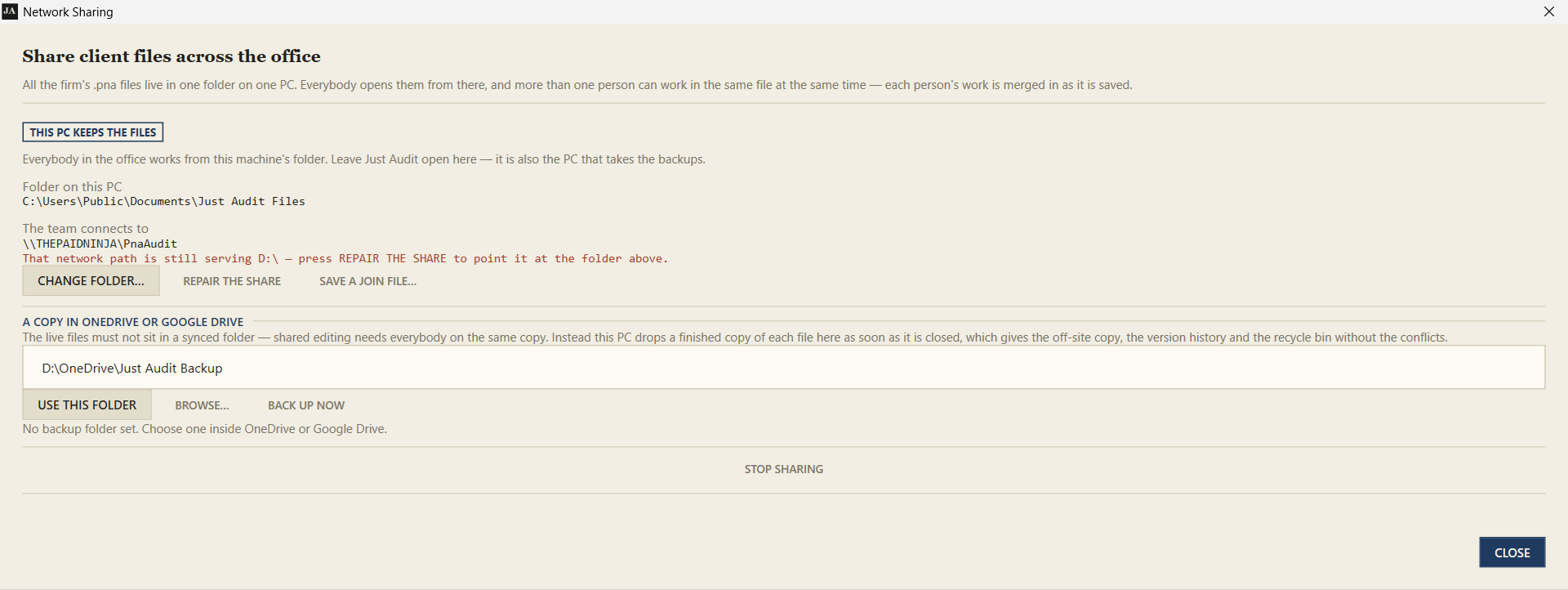
- Type the firm’s name, then press SHARE THIS PC’S FOLDER… and choose (or create) the folder the files will live in.
- Windows asks for administrator permission once. JustAudit then creates the folder, shares it on the network and opens the firewall for file sharing.
- Press SAVE A JOIN FILE… and send that small file to the rest of the team — e-mail, WhatsApp, a pen drive, however you like. It holds the network path and the firm name and nothing else: no passphrase, no client data.
On everybody else’s computer
Press NETWORK SHARING, then any one of these:
- OPEN A JOIN FILE… — the file you were sent.
- FIND IT ON THE NETWORK — finds the library by itself, as long as JustAudit is open on the computer that keeps the files.
- Or paste the path (something like
\\OFFICE-PC\PnaAudit) and press USE THIS FOLDER.
Once connected, a Firm library section appears on the home screen listing every client file in the folder, with whoever has one open named against it.
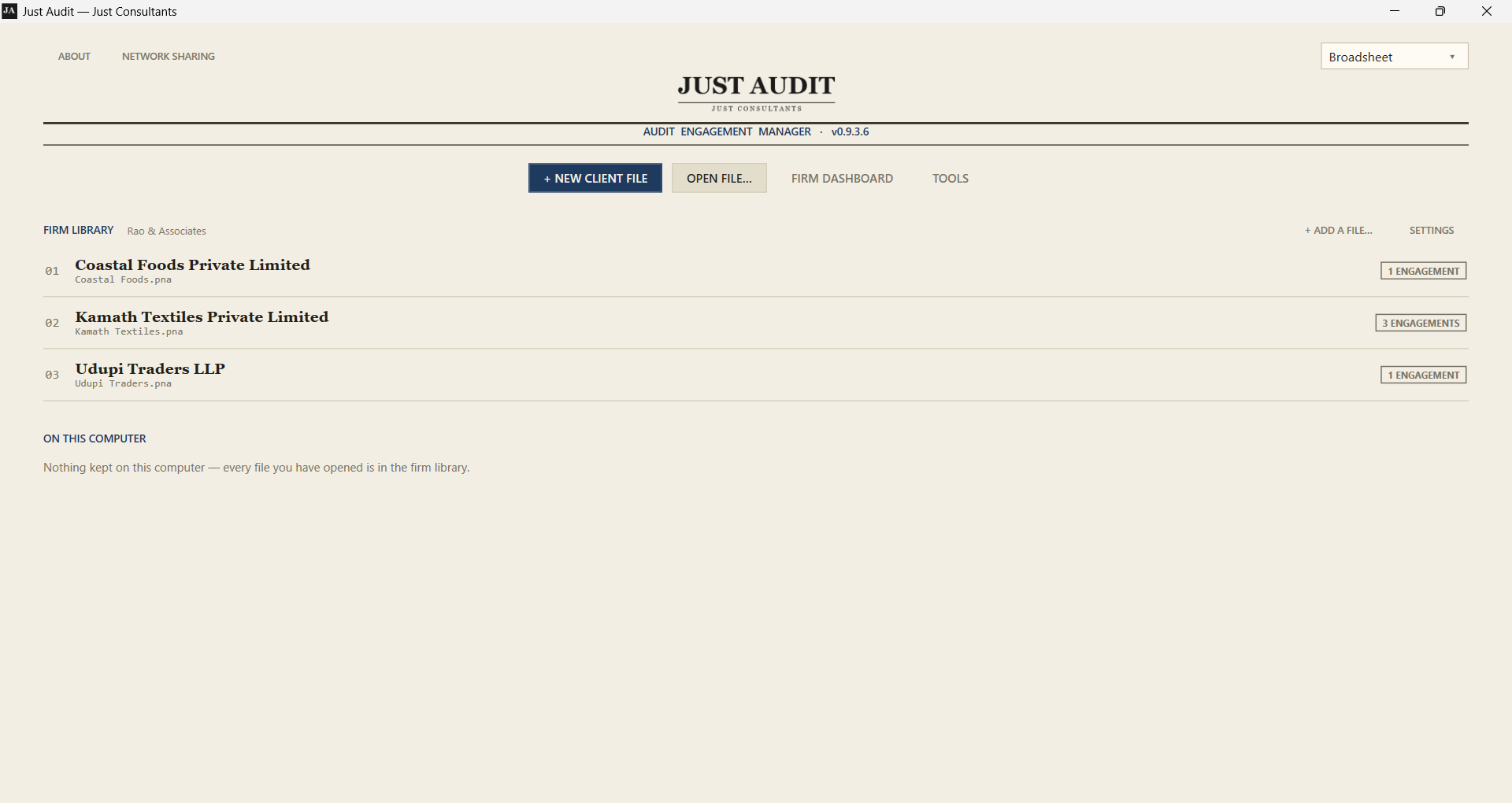
Putting your files in
+ ADD A FILE… takes an existing .pna,
converts it and puts it in the folder. It then offers to remove the copy left behind on
your own PC — say yes. Two copies of a client file is the problem you are trying
to leave behind.
What it is like to work in a shared file
- Open it exactly as you would any file. There is nothing to check out and nothing to lock.
- The status line names who else is in it. Their work appears in your window on its own, every few seconds — but never while you are mid-sentence in a box: it waits until you leave the field, so the cursor is never pulled out from under you.
- Two people in different clauses both keep their work. Registers merge row by row, so you can both be adding risks or misstatements at once. When one person is already in a note or clause, that item is greyed on everybody else's screen with their name on it, and frees the moment they move elsewhere.
- The one thing nothing can decide for you is two people typing into the same box at the same time. Yours stands, and theirs is reported rather than thrown away.
- Attachments behave as usual. A scanned confirmation one person attaches is openable on everybody else’s screen straight away, without a copy landing on every desk.
Worth knowing
- Windows permissions are the access control. Anyone who can reach the shared folder can open the files in it. Restrict the folder in Windows itself (right-click → Properties → Sharing) if not everyone should.
- Do not put the library itself in OneDrive or Google Drive — but do keep a copy there, which the program will do for you. See Keeping a copy in OneDrive just below.
- While anybody has a file open, a small
.pna.openfolder sits beside it. That is the file being worked on; it disappears by itself when the last person closes it. Do not delete it by hand while somebody is in the file. - If a PC is switched off mid-audit, nothing is stuck: whatever it had saved is in the shared file already, and the next person to close it puts everything back together.
- Away from the office — at a client’s premises, with no way to reach the office PC — the library is simply unreachable. Work locally that day and add the file to the library when you are back.
Keeping a copy in OneDrive or Google Drive
Firms keep their files in OneDrive for three good reasons: a copy that survives the office burning down, a version history for the afternoon somebody overwrites the right figure with the wrong one, and a recycle bin. You should not give those up — and you do not have to.
What cannot go in a synced folder is the live library. Several people editing one file depends on everybody reading and writing the same copy at the same instant; OneDrive gives each computer its own copy and reconciles them minutes later, so the file lock stops locking and you get conflicted copies instead of merged work.
So the program does it the other way round. Set a backup folder in NETWORK SHARING — a folder inside OneDrive or Google Drive — and the computer that keeps the files drops a finished copy of each client file there as soon as it is closed. The sync service takes it from there.

- A file somebody is still working in is skipped and copied when they close it, so a half-written file is never what gets backed up.
- Nothing is copied twice. A file that has not changed since its last copy is left alone, so this does not sit re-uploading gigabytes.
- The version history you end up with is the useful kind: one version per sitting, not one every few seconds while somebody types.
- The copies are made by the computer that keeps the files, so the program has to be open on it. The window shows when the last copy was taken — if that goes stale, that PC is not running the program.
- Nothing is ever deleted from the backup folder. A file taken out of the library keeps its last copy, which is what a backup is for.
The one decision worth getting right
A .pna file is encrypted, so a synced folder is a safe place for it, and
a synced folder gives you three things a hard disk simply cannot. An off-site copy,
for the laptop that is stolen or goes swimming. A version history, for the afternoon
somebody overwrites the right figure with the wrong one. And a recycle bin, for the
file that gets deleted. None of the contents are readable to the sync provider; it is
storing ciphertext.
Audit files are also the ones a firm is least able to reconstruct: a year's working papers exist in exactly one place and nowhere else. Two minutes of setting this up now is the cheapest insurance in the program.
JustAudit also writes a timestamped .bak copy the first time it upgrades a
file from an older format, so an upgrade can always be undone.
Do not open the same client file on two computers at once out of a synced folder. The sync service resolves it by picking one and keeping the other as a conflicted copy, no data is lost, but somebody's afternoon is. Working one file from several desks is exactly what the firm library is for, and it is the only safe way to do it.
If you use the firm library
The files are then on one office PC rather than on everybody's, which makes backing up both simpler and more important: it is one folder, and it is the firm's whole audit record.
- The simplest way is the program's own: set a backup folder inside OneDrive or Google Drive (see Sharing across the office) and a copy of every file is put there each time it is closed.
- Whatever else you use, back the library folder up; do not sync it. A synced library fights the sharing.
- Copy it when nobody has a file open, so every file is whole. A
.pna.openfolder means somebody is in that file. - Windows File History, or a nightly copy to a second disk, is plenty. The files are encrypted, so where the copy goes matters less than that it exists.
The browser edition
The same program also runs as a web page, at justaudit.justconsultants.in/web.
It opens the same .pna files, gives you the same tabs, and saves the file
back — decryption, editing and re-encrypting all happen on the device, and
nothing is uploaded anywhere. It is the thing to reach for on a Mac, an iPad, a
Chromebook, or a client's desk where nothing may be installed.
- A file worked on in the browser opens unchanged in the Windows program, and the other way round.
- Activating a browser takes one of your key's device seats, exactly as a computer does. Release an old browser from My licence when you stop using it — and do not clear the browser's site data, which reads as a new device.
- Windows remains the better desk for the heavy work: printing, Word export and the shared office library belong to the program.
More about the browser edition, and what it shares with the Windows program.
More computers, or a replaced laptop
Your licence covers a set number of computers, the office desktop, the laptop that goes to the client, the partner's machine. To add one, copy the program file across (or download it again) and enter the same product key.
Copying an already-activated computer's files to a second PC does not work. The licence names the machine it was issued to, so the second computer asks for the key, and that is what uses up a seat.
Replacing a computer
- Sign in at My licence.
- Find the old computer in the list and click Deactivate. The seat is free immediately.
- Activate the new one with the same key.
Your client files are nothing to do with the licence, they are just files. Copy them across, or if they were in OneDrive they are already there.
Need more computers than your licence allows? Get in touch and we raise the number on your existing key. Nothing needs re-entering on the machines you already have.
Activating a computer with no internet
Some office networks block everything they do not recognise, and some machines, the ones with the client data on them, are deliberately kept off the internet altogether. Those can still be activated, by hand, in five steps and one email.
- Open JustAudit on that computer and click Activate offline… on the activation window.
- At the bottom of that window is this computer's device ID, a long code. Send it to us with your product key, by email, on WhatsApp, or read it out. It is not secret.
- We send back a block of text.
- Save it as a file named
license.datin the same folder as the JustAudit program. Check Windows has not called itlicense.dat.txt, turn on File name extensions in File Explorer's View menu to see the real name. - Open JustAudit again. It starts straight into your work.
That licence is identical to one issued online, and it is tied to that computer in exactly the same way.
Installed from the Microsoft Store instead? The program's own folder is
read-only there, so put license.dat in
%LOCALAPPDATA%\JustAudit instead — paste that path into the File
Explorer address bar.
When it goes wrong
Almost every problem anyone has had with JustAudit is in this table, in the words the screen used. Find your row.
| What you see | What to do |
|---|---|
| "Windows protected your PC" | More info ▸ Run anyway. Details. |
| The downloaded file vanished | Defender quarantined it. Restore it from Protection history and add an exclusion, step 3. |
| Blocked, with no "run anyway" | Smart App Control. Turn it off in Windows Security, or ask us for an offline licence. |
| "That key was not recognised" | Look for a typo, a key never contains the letters I or O, or the digits 0 or 1. Copy and paste it from My licence. |
| "This licence belongs to a different computer" | The licence file was copied from another PC. Delete license.dat
beside the program and activate this computer with your key. |
| "All device seats are in use" | Sign in at My licence and deactivate a computer — or a browser — you no longer use, or ask us for more seats. |
| Activation times out or will not connect | Your network is blocking it. Try a mobile hotspot once, or use offline activation. |
| Your licence has expired | It keeps working for a short grace period, with a warning, so you are never locked out mid-audit. After that the app opens read-only: every file can be looked at, nothing changed or printed. Renew, and the app is itself again on its next launch — no work is ever lost. |
| "Could not save" when saving a client file | Controlled folder access, or a folder you have no permission to write to. Save into Documents or your OneDrive folder, step 3. |
| The program will not start at all | A half-finished auto-update is the usual cause: download it again from the download page and replace the old copy. Your client files are not touched. |
| "The computer's date has been moved backwards" | The clock was wound back past the licence's memory. Set the date correctly and reopen the program. |
| A colleague's edits are not appearing | Both of you must be opening the file from the firm library, not local copies. Check the FIRM LIBRARY section on the home screen, sharing. |
| You have forgotten the website password | Email us and we set a new one. It has no effect on the program or on any computer you have activated. |
Still stuck?
Write to us with what you were doing and what the screen said, a photo of the message is perfect. Nothing you send contains client data unless you attach a client file, and you never need to.